Your printer is connected to Wi-Fi, but your laptop suddenly says it cannot find the device. This is where knowing how to print ip address of printer can save a frustrating afternoon. The IP address is the printer’s local address on your home network, similar to a house number inside your Wi-Fi neighborhood. You can use it to reconnect the printer, open its settings page, or confirm that it is on the same network as your computer.
This is not a reason to panic. It is a reason to change one setting or print one information page. Most home printers can display or print their network details in less than five minutes. The exact menu names differ among HP, Canon, Brother, Epson, and Lexmark models, but the basic path is remarkably similar.
How to print ip address of printer from the printer itself
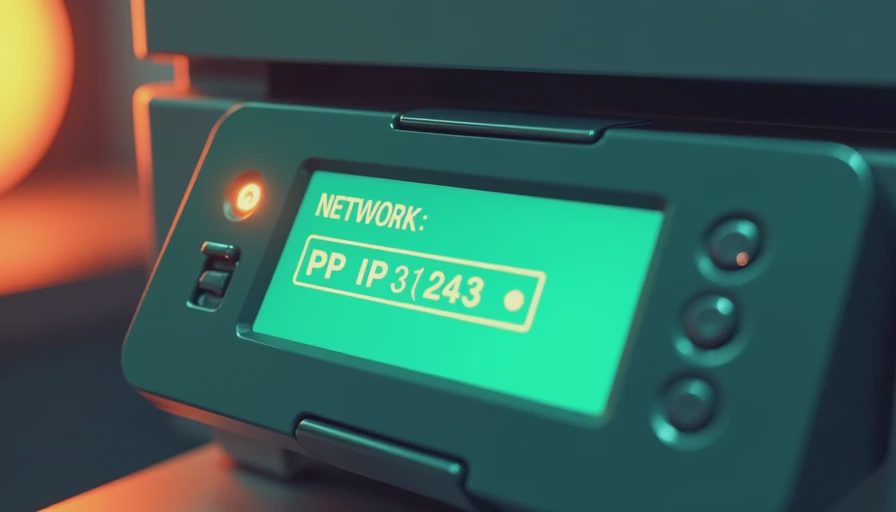
Start with the printer’s control panel. Look for a button or menu labeled Settings, Setup, Network, Wireless, Wi-Fi, or Network Configuration. Some models show a small wireless icon instead of the word Network. Open that area and search for an option called Print Network Configuration, Print Network Status, Network Information, or Wireless Test Report.
Select the report and give the printer a few seconds to produce the page. Look for a section labeled IPv4, IP Address, TCP/IP, or Network Information. The address will usually look like 192.168.1.24 or 10.0.0.18. Write down the complete series of numbers, including the periods. Do not confuse it with the printer’s MAC address, serial number, or Wi-Fi network name.
On many HP printers, you can reach the report through Wireless or Network Settings. Brother models often place it under Print Reports or Network. Canon and Epson printers commonly use a LAN Settings, Network Settings, or Print Details option. If your screen is small, the printer manual or the manufacturer’s support page can confirm the menu path for your model.
If the printer has no screen, look for a physical Wi-Fi or Information button. Holding that button for several seconds often prints a network status sheet, although the timing varies. Some compact models require pressing a combination of buttons. Use the exact instructions for your model rather than repeatedly pressing buttons at random, because one combination might reset network settings instead of printing a report.
Other ways to find the printer’s IP address
If the printer will not print a report, you still have several practical options. The manufacturer’s mobile app is often the easiest. HP Smart, Canon PRINT, Epson Smart Panel, and Brother Mobile Connect can usually identify a printer on the local network. Open the app, select the printer, and look under Printer Information, Network Details, or Advanced Settings.
You can also check your router. Sign in to the router’s app or administration page and open a list called Connected Devices, Client List, Device Map, or DHCP Clients. Find the printer by its brand or device name. The router should show its current local IP address. This method is especially useful when the printer has no display and the information button does not work.
On a Windows computer, open Settings, choose Bluetooth & devices, then Printers & scanners. Select the printer and open Printer properties. Look under the Ports tab for a port containing an IP address. The wording varies by Windows version, and a printer using a virtual or USB port might not show the network address there.
On a Mac, open System Settings, choose Printers & Scanners, select the printer, and review its details. If the printer was added using an Internet Printing Protocol address, the address may appear in the printer’s queue or configuration information. The router or printer report remains more reliable when the computer uses a generic driver.
Use the address to reconnect or troubleshoot
Once you know how to print ip address of printer, the next step is understanding what the number can tell you. Compare the printer’s address with your computer’s network. A computer at 192.168.1.35 and a printer at 192.168.1.24 are probably on the same home network. A printer at 192.168.1.24 and a computer at 10.0.0.12 may be separated by different networks, guest Wi-Fi, or router settings.
If the printer’s IP address opens in a web browser, you may see a configuration page. Type the address into the browser’s address bar, not the search box. This can show ink status, firmware information, Wi-Fi details, and network settings. Never share a screenshot of this page publicly, because it can reveal information about your home network.
If Windows or macOS cannot find the printer, removing and adding it again by IP address can help. Choose the option to add a printer manually, select a network or TCP/IP printer, and enter the address exactly as printed. A driver might still be required, but the direct address gives the computer a clear destination.

What to do when the IP address keeps changing
Many home printers receive an address automatically from the router. That is convenient, but the address can change after a router restart, a power outage, or a long period when the printer is turned off. If your computer worked yesterday and cannot find the printer today, print a new report before changing complicated settings.
For a more permanent fix, open the router’s device list and create a DHCP reservation for the printer. This tells the router to keep assigning the same local address to that device. Some printer control panels also allow a manual or static IP address, but router reservations are usually easier for families to maintain. Pick one approach, not both, unless the manufacturer specifically directs you.
Avoid copying a random address from an online tutorial. Your home network may use a different address range, and a duplicate address can create confusing connection problems. Also avoid turning off firewall protections simply because printing fails. Protect the front door before you build a taller fence: confirm the network first, update the printer software, and then adjust only the setting you understand.
A five-minute security check
Knowing how to print ip address of printer is useful, but the report also gives you a chance to check the device’s security. Confirm that the printer is connected to your private home Wi-Fi rather than an unfamiliar network. If your router has a guest network, remember that guest devices are often isolated from printers by design.
Change any default administrator password shown in the printer’s web settings. Keep the printer’s firmware current, especially if the manufacturer offers an update through its official app. Disable remote printing or cloud features you do not use. Those features are convenient for some households, but every enabled connection deserves a purpose.
Finally, do not post the full network report in a public forum. A local IP address alone usually does not let someone across the internet access your printer, but the page can expose device names and network details. Share only the model and the specific error when asking for help.
The practical next step
When someone asks how to print ip address of printer, the shortest answer is: open the printer’s Network or Wireless menu and print a Network Configuration or Status report. If that option is missing, check the manufacturer’s app, router device list, Windows printer properties, or Mac settings.
Use the address to compare networks, reconnect the printer, or reserve a stable address in the router. Then update the printer and remove features you do not need. Five minutes now beats five hours later, and the goal is not perfect security. It is fewer easy wins for the attacker and fewer mysterious printer failures for your family.





No notes on this sheet yet.