If your child is heading to a friend’s house, or you are trying to save a phone battery during a trip, you may wonder: does airplane mode turn off location? The short answer is no. Airplane mode usually disconnects cellular service and wireless connections, but location services can continue working. A phone can still use GPS signals, previously saved data, Wi-Fi information, or app permissions to estimate where it is.
That sounds more complicated than it is. Think of airplane mode as turning off several communication radios, not making the phone invisible or removing every sensor. The setting is useful, but it is not a complete privacy switch. Five minutes now beats five hours later, so let’s separate what airplane mode does from what it does not do.
What airplane mode actually turns off
On an iPhone or Android phone, airplane mode is designed to stop wireless transmissions that could interfere with aircraft systems. It commonly disables the cellular connection first. Wi-Fi and Bluetooth are also often turned off, although most modern phones let you turn either one back on while airplane mode remains active.
GPS works differently. GPS receivers listen for signals from satellites; they do not need a cellular connection to calculate a position. This means a maps app can sometimes show your location even when you cannot make a call or browse the internet. The phone might not be able to send that location to another person, but determining the location and sharing it are separate actions.
This distinction answers much of the question, does airplane mode turn off location? No. It may stop live location sharing if the phone has no usable internet connection, but it does not automatically disable the location sensor or revoke an app’s permission.
Airplane mode can also leave previously downloaded maps, photos, messages, and app data available. A location-based app may continue recording movement and upload the information later when a connection returns. That delayed upload is easy to miss, especially on a child’s device.

Does airplane mode turn off location on iPhone?
On an iPhone, airplane mode does not automatically switch off Location Services. To check the setting, open Settings, choose Privacy & Security, and select Location Services. The main switch controls location access across the device. Below it, each app has its own permission, such as Never, Ask Next Time Or When I Share, While Using the App, or Always.
If your goal is to stop apps from accessing the phone’s position, turning on airplane mode is not enough. You can turn off Location Services entirely, or review individual apps and remove access they do not need. For example, a weather app may work with location access while in use, while a flashlight app has no sensible reason to receive a location.
Find My creates another important wrinkle. Location sharing depends on the phone’s connection, account settings, and Apple’s Find My features. A phone in airplane mode may not provide a fresh location to family members while it is disconnected, but that does not mean location sharing has been permanently disabled. When connectivity returns, location features can resume according to the settings already in place.
Parents should also check Significant Locations and location-based system services if privacy is the priority. These settings are separate from airplane mode. You do not need to turn off every convenience, but reviewing unfamiliar permissions is a practical five-minute fix.
Does airplane mode turn off location on Android?
On Android, airplane mode also does not necessarily turn off location. Menu names differ among Samsung Galaxy, Google Pixel, Motorola, and other phones, but the general path is Settings, Location, then App location permissions. Android lets you see which apps recently requested location and whether they have permission all the time, only while in use, or not at all.
Android phones can use Google Location Accuracy, GPS, nearby Wi-Fi networks, and Bluetooth signals to improve location estimates. Turning off cellular data does not erase those capabilities. Some Android models offer a separate Location toggle in Quick Settings, while others place it under the main Settings menu.
If you are asking does airplane mode turn off location because you want to stop tracking, open the Location settings directly. Disable location access for apps that do not need it, and review Google account location controls if your family uses Google Maps location sharing. Also check whether a child’s phone is managed through Family Link or another family safety tool. Changing a permission locally may affect safety features you intentionally use.
The practical rule is simple: airplane mode controls connectivity; the Location setting controls location access. They overlap, but they are not interchangeable.
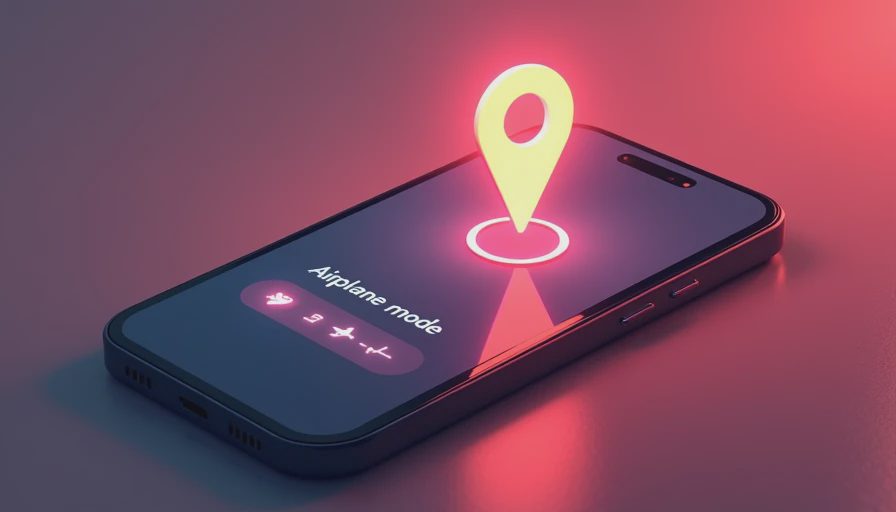
What someone can and cannot see in airplane mode
A disconnected phone generally cannot send a current location to an app, parent, website, or contact until it has a connection. That is the main privacy benefit. If Wi-Fi and Bluetooth are also off, many live tracking features will pause. However, the device itself may still know where it is, and an app may save a location history for later transmission.
A phone can also become connected again without the owner thinking about it. Wi-Fi can be manually enabled in airplane mode. Bluetooth can be restored for headphones, a smartwatch, or a car. Once the phone reconnects, apps with permission can communicate again. Airplane mode is therefore not a reliable way to hide movement from every service.
It also does not protect an unlocked phone from someone holding it. A person with access to the device may read downloaded messages, open maps, view photos, or change settings. Screen protection matters just as much as radio settings. Use a strong passcode rather than relying only on a simple pattern or an easily guessed PIN.
A five-minute family privacy check
Start by deciding what you actually want to accomplish. If you want to avoid roaming charges or interruptions during a flight, airplane mode is appropriate. If you want to prevent apps from accessing location, review Location Services or Android location permissions. If you want to pause family sharing, adjust the specific Find My, Google Maps, or family safety setting.
Next, review apps on each family phone. Remove location access from games, shopping apps, social platforms, and utilities that do not need it. Choose While Using the App when continuous access is unnecessary. Delete apps the family no longer uses; an unused app with old permissions is needless clutter.
Then check connectivity after enabling airplane mode. Open Quick Settings or Control Center and confirm that Wi-Fi and Bluetooth are off if that is your intention. Do not assume the icon tells the whole story, because both services can be turned back on while airplane mode remains enabled.
Finally, test the result with a trusted family member. Turn on airplane mode, wait a few minutes, and see whether a location-sharing service updates. Restore the settings afterward if the phone is needed for safety. This simple test teaches everyone what the setting really does.
The bottom line for everyday privacy
So, does airplane mode turn off location? No. It usually interrupts the connections that let a phone communicate, but it does not automatically disable GPS, location permissions, stored location data, or every tracking feature. On both iPhone and Android, the direct privacy control is the Location setting and each app’s permission.
Use airplane mode for flights, quiet time, battery conservation, and limiting wireless communication. Use app permissions, account controls, a strong passcode, and careful family sharing settings when privacy is the real goal. Protect the front door before you build a taller fence: remove unnecessary access first, then worry about more advanced settings. The goal is not perfect security. It is fewer easy wins for the attacker, and a clearer understanding of what your family’s devices are doing.




No notes on this sheet yet.