
The Conversation That Started This Post
A few weeks ago, Emily came into my home office and sat down across from my desk. Miles was asleep under the chair. The kids were at school. It was quiet.
She said: "Okay. If I only do five things—what are they?"
I started to explain. Then I caught myself.
I was about to give her a list of things that would take an hour. I was about to mention threat models. I was about to lose her.
So I stopped. And I thought about what actually matters.
If a family does nothing else, these five things reduce the most risk. They're not perfect. They're not comprehensive. But they take away the easy wins for attackers. And you can do them this week.
Here's what I told her. Now I'm telling you.
Why This Baseline Exists
Let's be honest for a second.
If you search "family online safety," you'll find lists with thirty items. You'll find articles that tell you to audit every app, change every password, and review every privacy policy.
That's not realistic for a family.
Here's what is realistic: a short list of the most important things. The things that stop the attacks that are actually happening to real families.
The attacks we see most often are simple:
Reused passwords from a breached site
Accounts without a second layer of protection
Default router settings that haven't been changed
Devices running old software
Family members who don't know how to spot a fake message
These aren't complex attacks. They're not using zero-day exploits. They're just taking advantage of things we haven't gotten around to fixing.
That's what this baseline fixes.
The Five Things You Actually Need to Do
1. Turn On Two-Factor Authentication for Your Most Important Accounts
Here's the reality: passwords get stolen. It doesn't matter how good your password is. If a site gets breached, your password can end up online. Reused passwords make this worse—but even a unique password won't save you from a breach.
Two-factor authentication (2FA) is the backup plan.
It means that even if someone has your password, they still can't get in. They need a second thing—usually a code from an app on your phone or a text message.
What accounts need this most:
Account Type | Why It Matters |
|---|---|
If someone gets into your email, they can reset every other password | |
Bank / Financial | Direct access to money |
Primary Social Media | Impersonation and identity theft |
Password Manager | It holds everything else |
The five-minute version:
Open your email account settings
Find "Security" or "Two-Factor Authentication"
Turn it on using an authenticator app (not SMS if you can avoid it)
Save the backup codes somewhere safe
Repeat for banking and one social account this week
What to do if a family member resists: Start with your own accounts. Show them how it works. Emily was skeptical until she saw it in action. Now she checks her settings.
2. Use a Password Manager for the Whole Family
I know what you're thinking: "Another account to manage?"— and I get it.
But here's the problem most families don't realize: you can't remember unique passwords for every account. It's not possible. And when you reuse passwords, one breach puts all your accounts at risk.
A password manager stores all your passwords securely. It generates strong ones automatically. It fills them in for you. And good family plans let you share passwords safely.
What to look for in a family password manager:
A family plan that allows at least five users
Password sharing between family members
Emergency access in case something happens
Apps that work on phones and computers
The five-minute version:
Pick one password manager from the list above
Install it on your phone and computer
Set up the family plan and invite Emily
Let the browser extension start saving logins as you use them
Change one password to something the manager generates and saves
A note on the family sharing part: I'll be honest, this was the part I worried about most—convincing Emily to store our passwords in a single place. What changed her mind was the "shared vault" feature. Now when we need the Netflix password, neither of us has to yell across the house. "Check the shared vault" has become a standard phrase in our house.
3. Secure Your Wi-Fi Router
Your router is the door to your home network. If someone gets through it, they can see what you're doing online, access devices on your network, and potentially steal information.
Most routers come from the factory with weak security settings. The manufacturer doesn't care about your security—they care about getting the device out the door. This is the one setting on every family device I always check first, even before I deal with kids' devices or streaming accounts.
The five-minute version:
Log in to your router (usually typing
192.168.1.1into a browser)Change the default admin password
Turn on WPA2 or WPA3 encryption
Rename your Wi-Fi network
Turn off WPS (Wi-Fi Protected Setup) if you can find it
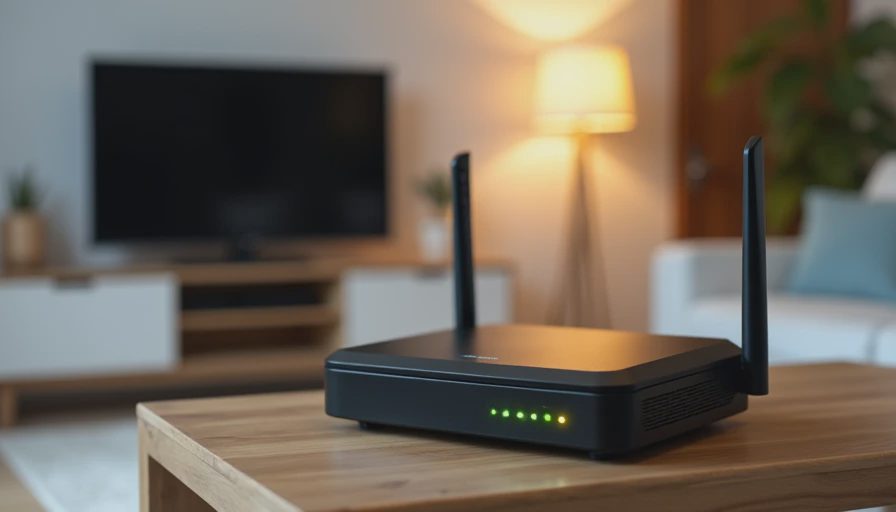
What to do if you don't know your router password: Check the bottom of the router. Many have a sticker with the default password. If that doesn't work, search your router model number online for the default credentials. You can also call your internet provider and ask them to help.
Why these settings matter:
Setting | What It Does |
|---|---|
Change default admin password | Prevents someone from accessing your router settings |
WPA2/WPA3 encryption | Makes it harder for someone to intercept your Wi-Fi traffic |
Change SSID (network name) | Signals that your network isn't a default target |
Disable WPS | Removes an easy way for attackers to guess your Wi-Fi password |
4. Set Up Automatic Updates on Everything
I'm going to tell you something unglamorous: most attacks exploit known vulnerabilities.
That means the attack uses a weakness that the manufacturer already knows about. They've already released a fix. The problem is that people haven't installed it.
Automatic updates close this gap.
What needs automatic updates:
Your computer's operating system
Your phone's operating system
Your browser
Your router (if available)
Smart-home devices
Apps on your phone
The five-minute version:
On your computer: go to settings and turn on automatic updates
On your phone: enable automatic app updates
Check your router manufacturer's app for firmware update settings
Spend five minutes once a month doing a quick manual check
Turn on auto-updates for any smart-home devices you can manage
What to do if you have old devices that aren't receiving updates: This is a legitimate question and one we deal with in our house too. If a device is too old to receive security updates, consider replacing it. It's one of the only things I recommend spending money on, because running an unsupported device is one of the few recommendations that actually creates significant risk. I don't say that to scare you—I say it to be honest about priorities.
5. Teach Your Family One Simple Rule for Messages
This one takes five minutes to learn and can prevent most scams.
The rule is simple: Never click a link or open an attachment from an unexpected message.
That's it. The one rule that stops most attacks dead.
Here's how you make it easy to remember:
If you weren't expecting it, don't click it.
Not "if it looks suspicious." Not "if you think it's spam." If you weren't expecting it, don't click it.
The five-minute version:
Explain the rule at dinner
Show an example of a fake message
Practice what to do instead
Pick a safe person to check with
Agree: it's always okay to ask before clicking
Specific warning signs to look for in messages:
Urgency (your account will be locked, your package will be returned)
Grammar or spelling errors
A link that doesn't match the sender
Requests for personal information
A feeling that something is off
What to do when you receive a suspicious message:
Don't click anything
Verify the sender separately—call the company directly or go to the website
If you think it's fraudulent, report it and delete it
A Note on Progress Over Perfection
I want to be honest with you about something.
When I gave Emily this list, she didn't do everything at once. She started with the message rule. Then she let me set up her password manager. Then she turned on two-factor authentication for her email.
It took three weeks to get through all five things.
And that's completely fine. Actually, that's normal.
The goal isn't to do everything today. The goal is to make progress. One setting at a time. One family member at a time.
Five minutes now beats five hours later.
What to Do Next
You have two options.
Option one: Pick one of these five things and do it today. I'd suggest starting with the message rule or two-factor authentication.
Option two: Print this list and use it as a weekly checklist. Do one thing per week.
Either way, just start. The next post will be about a specific scenario in our household—the school Chromebooks we didn't expect to manage. The one where Emily gave me a look that said "So you're going to figure this out, right?"
But for now, start with the baseline.
Dave C. — Five minutes now beats five hours later.





No notes on this sheet yet.