A child’s first smartwatch can solve a very ordinary family problem: your child is at school, practice, or a friend’s house, and you want a simple way to reach them. The SecuLife kids smartwatch with SOS button and GPS tracking is designed around that need, but location technology also creates privacy and account-security questions. Before buying, parents should understand what the watch can do, what it cannot do, and which settings deserve attention during the first five minutes.
This is not a reason to panic. It is a reason to protect the front door before you build a taller fence. A GPS watch is only as secure as the parent account, phone, cellular plan, and people who receive access. The goal is not perfect security. The goal is fewer easy wins for an attacker and fewer confusing alerts for your family.
What the SecuLife watch is meant to do
The SecuLife kids smartwatch with SOS button and GPS tracking generally fits the category of connected children’s watches that combine cellular communication, location features, and caregiver controls. Depending on the model and service plan, parents may use an app to view a child’s reported location, communicate through approved features, configure alerts, and contact the watch when needed. The exact capabilities, compatible networks, battery life, and subscription terms should be confirmed on the current product listing before purchase.
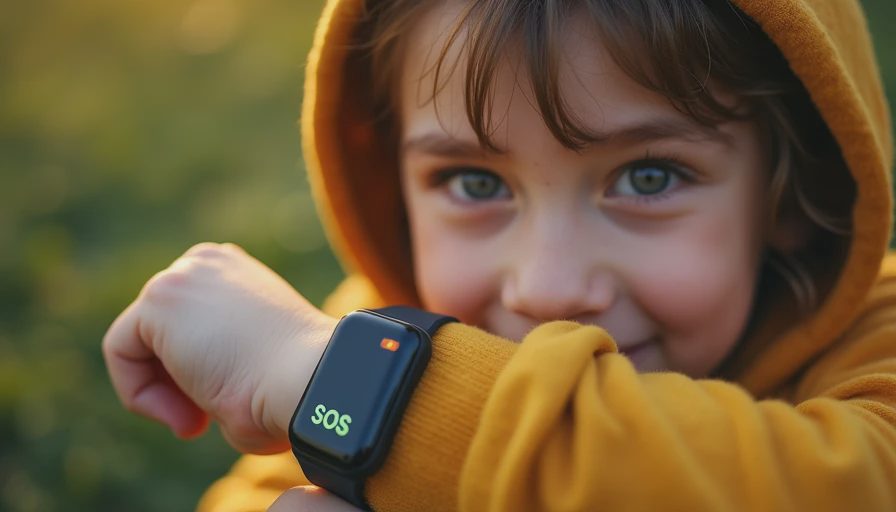
The SOS button is the most important feature to explain clearly. It is not a magic emergency service, and a child needs to know what happens after pressing it. Some systems alert selected contacts, start a call sequence, or send a location notification. That is different from directly contacting 911. A child should practice pressing the button only during a planned drill, while a parent explains which adults will respond and when emergency services are appropriate.
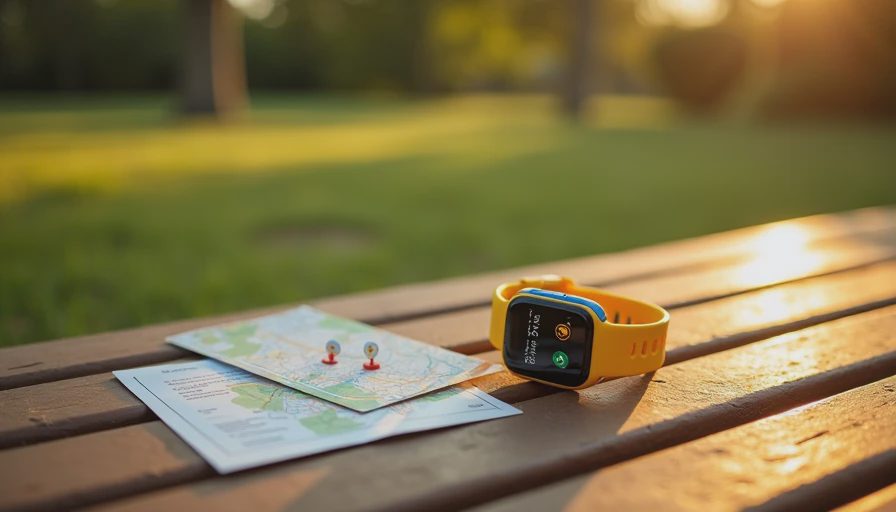
GPS tracking also has practical limits. Indoor locations, tall buildings, weak cellular coverage, low battery, and delayed app updates can affect accuracy. A map dot is useful information, not a guarantee that shows a child’s exact position every second.
Set up the parent account before handing over the watch
The biggest security mistake is treating setup as a quick pairing exercise. Start with a unique password for the parent account. Do not reuse the password from email, banking, school portals, or social media. If the service offers multifactor authentication, enable it before adding a child profile. A password manager such as 1Password, Bitwarden, or Apple Passwords can create and store a strong password without making you memorize another one.
Review every account role and contact. Add only the adults who genuinely need access, and remove old babysitters, former partners, or unused phones. If the app permits different permission levels, give a secondary caregiver the least access needed for the job. Check whether invitations expire and whether the service shows active sessions or logged-in devices. If you sell, replace, or reset a phone, sign out of the old device rather than assuming the app removed access automatically.
Use a current phone operating system and install the companion app from the Apple App Store or Google Play. Avoid links sent through unsolicited messages. Here’s what the attacker needed in a common account takeover: a reused password, a fake login page, or an old phone that still had access. Strong credentials and a session review interrupt that chain.
Make location sharing useful without making it public
Parents often search for the SecuLife kids smartwatch with SOS button and GPS tracking because they want reassurance during a school pickup or a walk around the neighborhood. That reassurance works best when location sharing is limited to a small, trusted circle. Do not post live map screenshots on social media, and do not share the child’s routine in public comments. A photo showing a school name, sports schedule, or regular route can reveal more than intended.
Look through the app for location history, geofencing, notification settings, and data-sharing controls. A geofence alert can be helpful when a child leaves school or arrives home, but too many zones create alert fatigue. Start with one or two meaningful places and test them during daylight with the child and another adult present. Decide how long location history should remain available, if the app provides that option, and delete data you no longer need.
Explain the watch in age-appropriate language. The child should know which caregivers can see location information, when tracking is used, and why the watch should not be loaned to another child. Privacy is not secrecy from parents; it is limiting access to people who have a real caregiving reason.
Test SOS, calls, and alerts like a real household
Before the first unsupervised outing, test the SecuLife kids smartwatch with SOS button and GPS tracking in several ordinary situations. Try it inside the home, outdoors, and in a place with weaker reception. Confirm that the watch has enough battery, the cellular service is active, the parent app receives notifications, and the selected contacts understand what an alert looks like. Check whether silent mode, school hours, or a disabled phone notification prevents an urgent message from being noticed.
Create a short family response plan. If the child presses SOS accidentally, the child should stay nearby and answer the caregiver. If the alert indicates a real problem, the first adult who receives it should call the child, contact the other designated caregiver, and call emergency services when there is immediate danger. Write the plan in plain language rather than relying on memory during a stressful moment.
Test the watch after a software update, service-plan change, or phone replacement. A feature that worked during setup can fail later because permissions were reset or notifications were disabled. Five minutes now beats five hours later.
Understand costs, battery, and everyday tradeoffs
The purchase price is only one part of the budget. A connected watch may require a recurring cellular or service subscription, and some features may depend on the selected plan. Ask whether activation, replacement, cancellation, roaming, or extra caregiver access costs more. Keep the receipt, model number, service terms, and support contact in one secure place.
Battery life depends on use. Frequent location updates, calls, weak signal, and bright screens can drain the battery faster than a watch used occasionally. Establish a charging routine, such as placing it beside the child’s toothbrush every night. Teach the child to report a low-battery warning rather than quietly removing the watch. If the battery is dead, the best location feature in the world is unavailable.
The SecuLife kids smartwatch with SOS button and GPS tracking can also create false confidence. It should supplement age-appropriate supervision, not replace conversations about crossing streets, trusted adults, stranger awareness, or what to do when plans change. A watch cannot prevent every accident or identify every unsafe situation.
A five-minute security checklist before purchase
Before ordering, confirm that the current model supports your phone and local cellular coverage. Read the privacy policy and service terms far enough to understand account data, location retention, and deletion options. Confirm how SOS alerts work, who receives them, and whether emergency calling is direct or caregiver-mediated. Check the return process in case the device does not work reliably in your home or neighborhood.
After delivery, change the temporary password, enable multifactor authentication, limit caregiver access, update the app, and test the alert flow. Then review the account once a month. Remove unused contacts, check signed-in devices, inspect notification permissions, and ask your child whether the watch is comfortable and easy to use.
The right purchase is less important than the quality of the setup. The SecuLife kids smartwatch with SOS button and GPS tracking can be a useful communication tool when the family understands its boundaries. Start with one trusted account, a small contact list, a tested emergency routine, and sensible privacy settings. Protect the front door first, then enjoy the convenience.



No notes on this sheet yet.