If your child uses an iPhone for games, school, videos, or messaging, learning how to put parental controls on iphone is a practical first step. Apple includes useful family controls at no additional cost, but the settings are spread across Screen Time, Family Sharing, and Content & Privacy Restrictions. You do not need to understand every technical option. Start with the doors most likely to cause trouble: purchases, unsafe content, unknown contacts, and late-night screen use.
This is not a reason to panic. It is a reason to change a few settings while your phone is in your hand. The goal is not perfect surveillance or a completely risk-free internet. The goal is fewer easy wins for scams, accidental purchases, inappropriate content, and conversations your child is not ready to handle.
Before you start: use the right Apple account
The cleanest setup begins with Family Sharing. On your iPhone, open Settings, tap your Apple Account name, choose Family, and follow the prompts to add your child. If your child has an Apple Account, use that account rather than sharing your own login. A separate account keeps your photos, messages, payment methods, and location data from blending together.
Next, update both devices if possible. Open Settings, choose General, and tap Software Update. The labels can shift slightly between iOS versions, but Screen Time remains the central control panel. Set a Screen Time passcode that your child will not guess. Do not reuse the iPhone unlock code, a birthday, or 1234. Write the passcode in your password manager or another secure place so you do not lock yourself out of your own settings.
When parents ask how to put parental controls on iphone, I usually recommend starting with restrictions before time limits. A child who can use an app for only 30 minutes can still make a $49.99 in-app purchase in two minutes if purchasing is open.
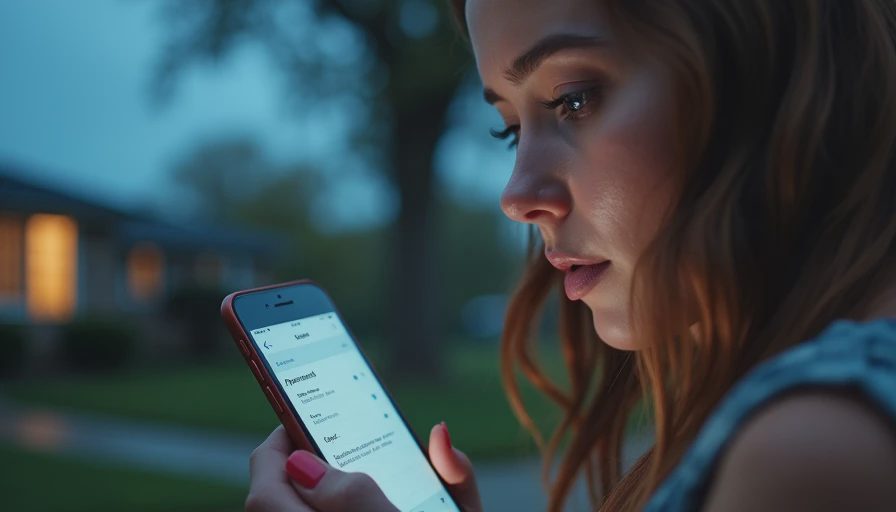
How to put parental controls on iphone with Screen Time
Open Settings, tap Screen Time, and select your child’s name if you manage the device through Family Sharing. Otherwise, choose Turn On Screen Time directly on the child’s iPhone. Select This Is My Child’s iPhone when prompted, then create the Screen Time passcode.
Start with Downtime. This creates a scheduled quiet period, such as 8:30 p.m. to 7:00 a.m., when most apps are unavailable. Allow important exceptions, such as Phone, Messages for approved contacts, Maps, or a school app. Downtime is more useful than arguing about every individual game at bedtime because the rule runs automatically.
Then open App Limits. You can set a daily limit for categories such as Games, Social Networking, Entertainment, or individual apps. A 60-minute entertainment limit is a reasonable starting point for many families, but homework, weekends, and school requirements differ. Use the setting as a conversation starter, not as a substitute for parenting.
Communication Safety can help warn a child before viewing or sending sensitive images in supported Apple apps. Explain what the warning means without making your child feel punished for receiving something unexpected. If a stranger sends an inappropriate image, the important response is to stop, avoid replying, and tell a trusted adult.
Block purchases and filter content
To continue learning how to put parental controls on iphone, return to Screen Time and open Content & Privacy Restrictions. Turn the feature on. Under iTunes & App Store Purchases, set Installing Apps, Deleting Apps, and In-App Purchases to Don’t Allow if you want a tightly managed device. You can require a password for purchases instead, but approval is safer for younger children.
Under App Store, Media, Web, and Games, review the age ratings for apps, movies, television, books, and music. Choose an age range that fits your child rather than automatically selecting the highest available setting. Turn off explicit music, podcasts, and news if those are not appropriate for your household.
For web access, you can choose Limit Adult Websites or Allowed Websites Only. Allowed Websites Only is restrictive and can interfere with school research, so it works best for younger children and supervised devices. Limit Adult Websites gives older children more flexibility while blocking many common adult sites. No filter catches everything, so teach your child to close a page and ask for help when something feels wrong.

Lock down privacy and contact risks
Content filters are only one part of how to put parental controls on iphone. In Content & Privacy Restrictions, review Location Services, Share My Location, Contacts, Photos, Microphone, and Bluetooth sharing. You can prevent apps from changing location settings or requesting access without approval. Do not disable location blindly; Find My can be valuable when a family member is traveling or cannot be reached.
Check which apps have access to the camera, microphone, and photos. A flashlight or simple puzzle game usually does not need access to your entire photo library or microphone. On newer iOS versions, you can often choose limited photo access instead of allowing an app to see everything.
Communication Limits can restrict calls and messages during Screen Time and Downtime. Add trusted family members as exceptions when appropriate. Ask your child which contacts they need for school, activities, and emergencies. A long list of unknown accounts is worth reviewing together, especially if a game or social app encourages private messaging.
Test the settings like an ordinary child
After you finish how to put parental controls on iphone, test the controls yourself. Try downloading a free app, opening a restricted website, changing the time zone, making an in-app purchase, and accessing a blocked app during Downtime. If a setting does not behave as expected, update the phone and review the Screen Time passcode and Family Sharing setup.
Also check whether the child knows the Apple Account password. An account takeover can bypass your household plan if someone tricks your child into entering credentials on a fake sign-in page. Turn on two-factor authentication for the Apple Account, and explain that Apple will not need a child to disclose a password through a random text or pop-up.
Do not use parental controls as a secret trap. Tell your child what is limited, why the rule exists, and how to ask for an exception. Older children may reasonably need more independence, while a five-year-old may need Allowed Websites Only and no app installations without approval.
A simple five-minute maintenance routine
Once a month, review Screen Time reports, installed apps, contact lists, and privacy permissions. Look for an unfamiliar app, a sudden increase in messaging, or repeated attempts to reach blocked content. These are signals for a calm conversation, not automatic proof that your child has done something wrong.
Review the settings after a new iOS update, a new phone, or a change in school requirements. Apple also lets families adjust settings as children mature. Start strict, then grant specific freedoms based on responsible behavior. Remove old apps and revoke permissions that no longer serve a purpose.
If you remember only one process for how to put parental controls on iphone, remember this order: create separate accounts, protect Screen Time with a unique passcode, block purchases, set age and web limits, review privacy permissions, and test the result. Five minutes now beats five hours later. Protect the front door before you build a taller fence, then keep the conversation open as your child grows.




No notes on this sheet yet.