When a child uses an iPhone for games, homework, videos, and messages, the hard part is not finding one magic safety switch. It is choosing a few settings that match the child’s age and your household rules. Learning how to set up parental controls on iphone gives you a practical way to limit risky content, reduce late-night scrolling, and review app purchases without reading every conversation.
Apple builds these tools into iOS through Screen Time and Family Sharing. You do not need a monitoring company, special software, or a technical background. You need about 15 minutes, the child’s Apple Account information, and a plan for the passcode. Five minutes now beats five hours later.
Start with Family Sharing and Screen Time
Before changing limits, update the iPhone to the latest available version of iOS. Open Settings, tap your name, and choose Family. Follow the prompts to invite your child’s Apple Account or create a child account if needed. Family Sharing lets you manage settings from your own iPhone, approve downloads, and see Screen Time summaries without borrowing the child’s phone every evening.
On the child’s device, open Settings, select Screen Time, and tap Turn On Screen Time. Choose This Is My Child’s iPhone. Create a Screen Time passcode that your child cannot easily guess. Do not use the same code as the phone unlock code, your birthday, or the last four digits of a phone number. Store it in your password manager so you do not accidentally lock yourself out of the settings.
If you are wondering how to set up parental controls on iphone for more than one child, create age-appropriate rules for each account. A teenager who needs navigation and school apps will need a different schedule from a seven-year-old who mainly watches approved videos.
Set downtime and daily app limits
Downtime creates a quiet period when most apps are unavailable. In Screen Time, tap Downtime and choose a start and end time. A reasonable first setup might block entertainment apps from 9 p.m. to 7 a.m. You can adjust the schedule for weekends, sports nights, or homework demands. Phone calls, emergency contacts, and apps you mark as Always Allowed can remain available.
Next, open App Limits. Choose categories such as Games, Social Networking, Entertainment, or individual apps. A 30-minute daily limit for a short-video app is more useful than a vague instruction to “use it less.” When time runs out, the child can request an extension. You decide whether to approve it from your device or enter the Screen Time code yourself.
Do not treat limits as punishment. Explain that the setting protects sleep, school time, and family time. Review the weekly report together. If the report shows two hours of educational apps and 20 minutes of games, the conversation can stay calm and specific instead of becoming an argument about screen use.
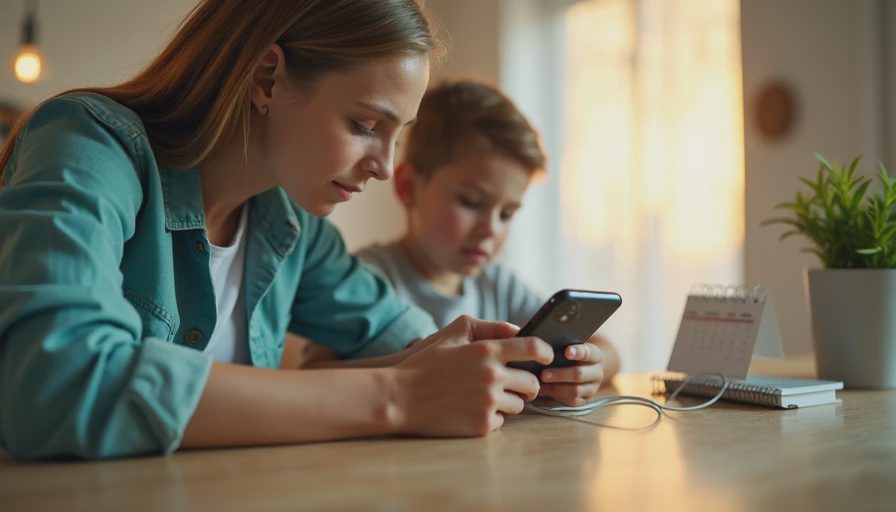
Restrict purchases, downloads, and web content
Many unwanted charges begin with a child tapping through an in-app purchase, not with a stolen credit card. In Settings, open Family, select the child’s name, and turn on Ask to Buy. The child can request an app or purchase, while you approve or decline it from your device. Also review Settings, Screen Time, Content & Privacy Restrictions, and iTunes & App Store Purchases. Set Installing Apps, Deleting Apps, and In-App Purchases to Don’t Allow when that fits your family’s rules.
Under Content Restrictions, set age ratings for apps, movies, television, books, and music. For younger children, choose Limit Adult Websites under Web Content. You can also add specific sites to Always Allow or Never Allow. For a child who needs a school website that is incorrectly blocked, add it manually rather than removing all filtering.
These filters are useful but imperfect. A determined teenager may encounter content through a browser, game chat, or another device. The goal is not perfect security. It is fewer easy wins for the attacker, fewer accidental purchases, and fewer late-night rabbit holes.
Control communication and privacy settings
Screen Time includes Communication Limits, which can restrict who your child may contact during Screen Time and Downtime. You can choose contacts from iCloud or allow everyone, depending on age and family policy. Communication Safety can warn about sensitive images in supported Apple services. It is designed to provide an on-device warning and does not give you a complete transcript of private messages.
In Content & Privacy Restrictions, review Location Services, Contacts, Photos, Microphone, and Camera permissions. A flashlight app does not need access to contacts. A game may need a microphone for group play, but you can turn that permission off later. Open Settings, Privacy & Security, and check App Privacy Report to see how apps use permissions and network access.
Be honest with children about what you manage. Secret surveillance can damage trust and rarely teaches good judgment. Say, “I can see your screen-time totals and approve downloads, but I am not reading every message.” Clear boundaries make it easier for a child to ask for help when something online feels wrong.
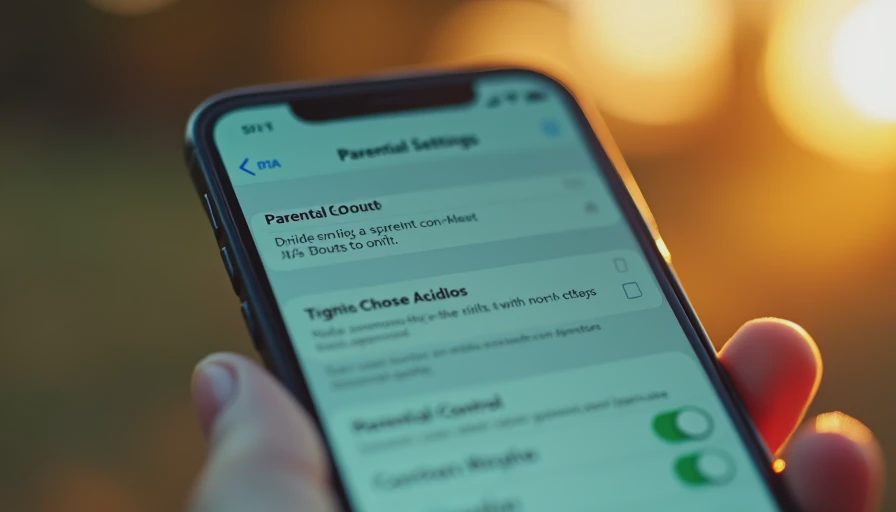
Test the setup before handing over the phone
The best answer to how to set up parental controls on iphone includes a short test. From the child’s phone, try downloading a free age-restricted app, opening a blocked website, making an in-app purchase, and using an entertainment app during Downtime. Confirm that the phone asks for approval or displays the limit you intended.
Check Always Allowed carefully. If every distracting app appears there, Downtime will not accomplish much. Keep essential options such as Phone, Messages for approved contacts, Maps, and school tools available. If your child uses the iPhone for medical alerts or transportation, account for those needs before creating a strict schedule.
Ask the child to show you how they request more time. Then review the Screen Time report after one week. A limit that blocks homework is poorly designed; a limit that leaves gaming untouched is too loose. Adjust one setting at a time so you know what helped.
Common problems and a five-minute checklist
If Family Sharing does not appear, confirm that everyone is signed in with an Apple Account and that you are the family organizer. If the Screen Time passcode is forgotten, use Apple’s recovery process rather than repeatedly guessing. If a child can change limits, make sure you selected the child’s account and created a separate Screen Time passcode.
Here is the quick checklist I use at home:
- Update the iPhone and confirm the child’s Apple Account.
- Turn on Family Sharing, Screen Time, and Ask to Buy.
- Set Downtime around sleep and school routines.
- Add realistic limits for games, video, and social apps.
- Restrict adult websites, purchases, and app installations as appropriate.
- Review location, camera, microphone, and photo permissions.
- Test the rules, then revisit them after seven days.
Parents often search how to set up parental controls on iphone after a child has already seen something upsetting or made an unexpected purchase. Start with the highest-impact setting instead of trying to fix everything at once. Protect the front door before you build a taller fence. A working passcode, sensible downtime, and purchase approval can change the household’s risk today.





No notes on this sheet yet.